
Linx sends email through your own email account and sends texts using prepaid credits. Neither works until you set them up, so do this before you send your first message.
Connect your email account
Linx sends email through your own mail server (SMTP), so the messages come from your own address. Nothing is set up on a new account. If someone clicks Send before it is done, Linx stops and shows Email isn’t set up yet, with where to go to fix it, so no message is lost to a silent failure.
For a business unit
- Go to Administration → Preferences → Settings and open the Mail tab.
- Choose the Business Unit you are setting up.
- Fill in the Default Mail Address and Default Mail Display Name. Both are required.
- Set Type to SMTP and enter the Host, Port, Username, Password and Protocol (None, SSL or TLS). Your email provider gives you these.
- Tick Always use the default mail address if everyone in this business unit should send from it.
- Click Save.
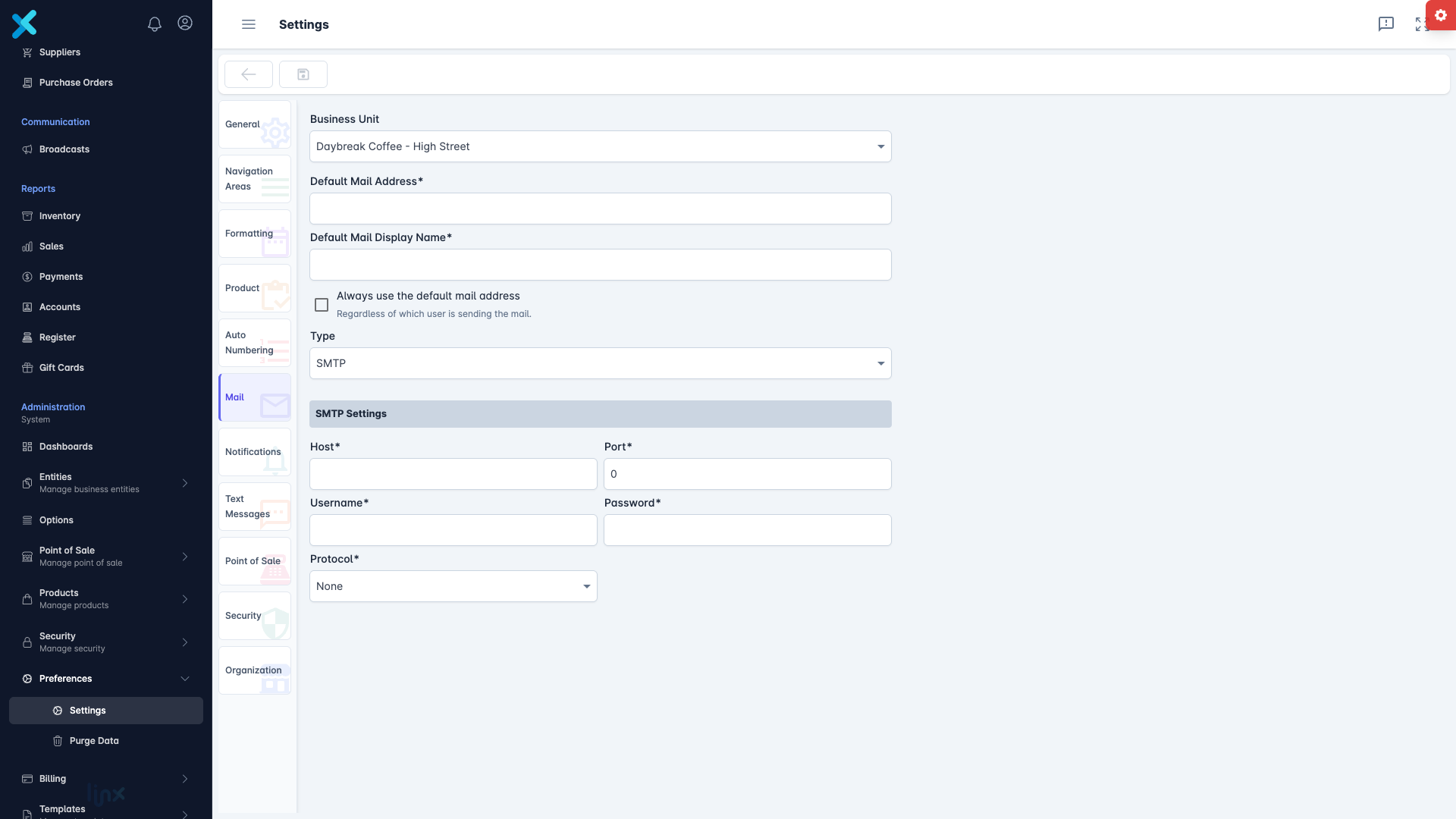
Linx looks for mail settings in this order: the person, then their business unit, then the business unit above it. A business unit without its own settings uses its parent’s.
For yourself
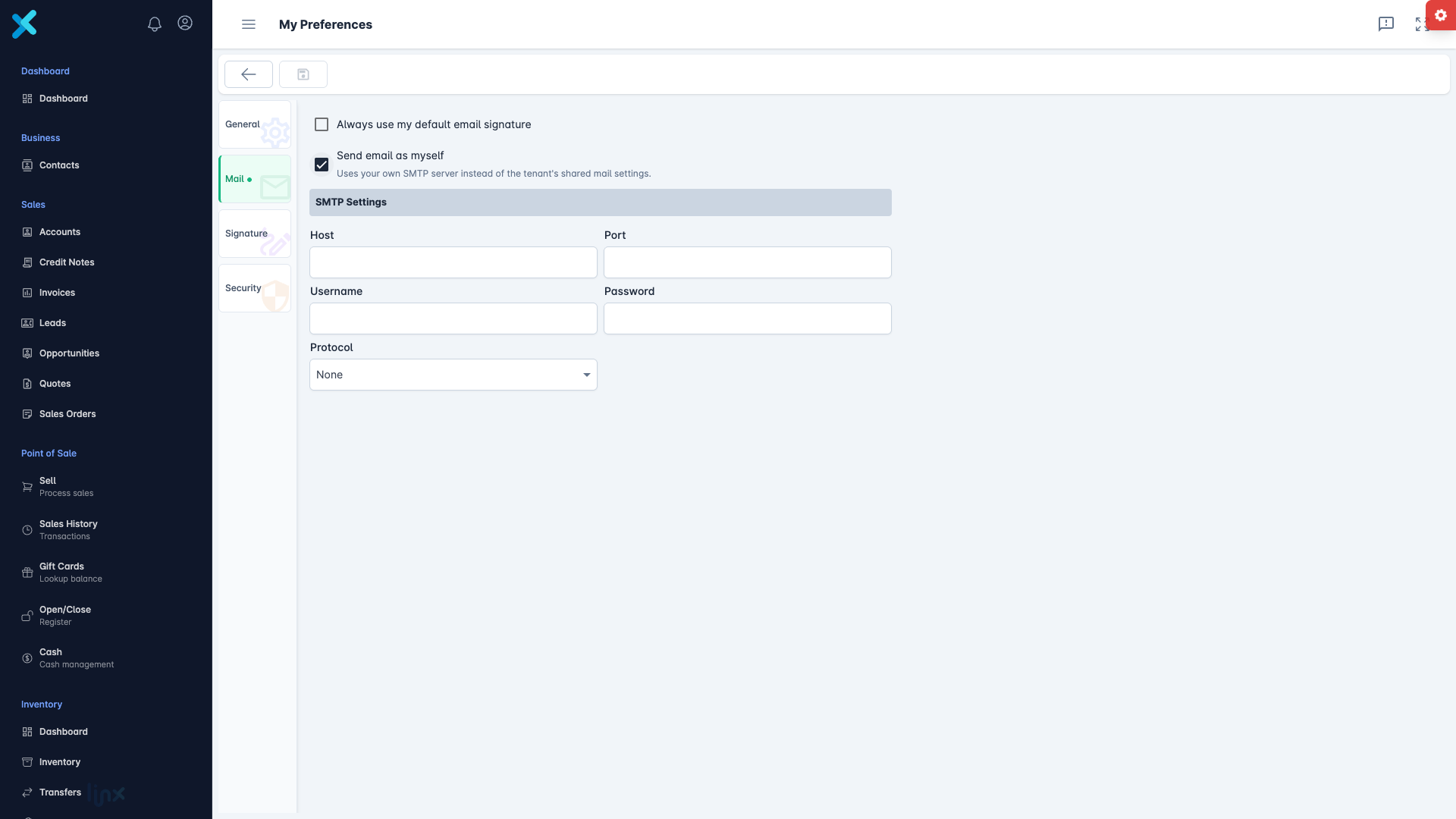
Go to My Preferences → Mail and tick Send email as myself, then enter your own mail server details.
Add your email signature
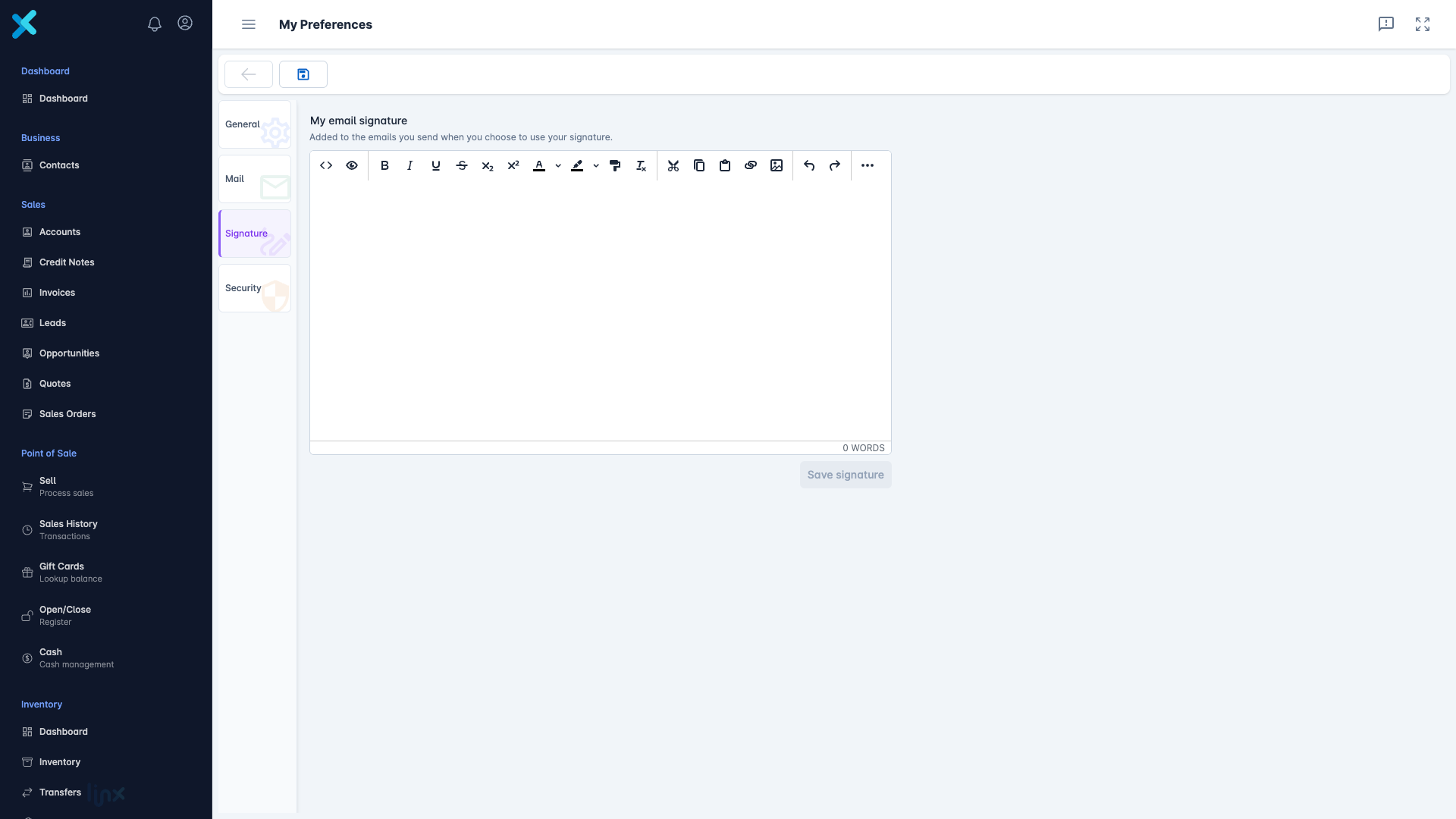
- Go to My Preferences → Signature.
- Write your signature in My email signature and click Save signature.
On the Mail tab, tick Always use my default email signature to add it to new emails automatically.
Every signature belongs to one person.
Administrators can manage other people’s signatures under Administration → Templates → Signature. See Set up email signatures.
If an email fails
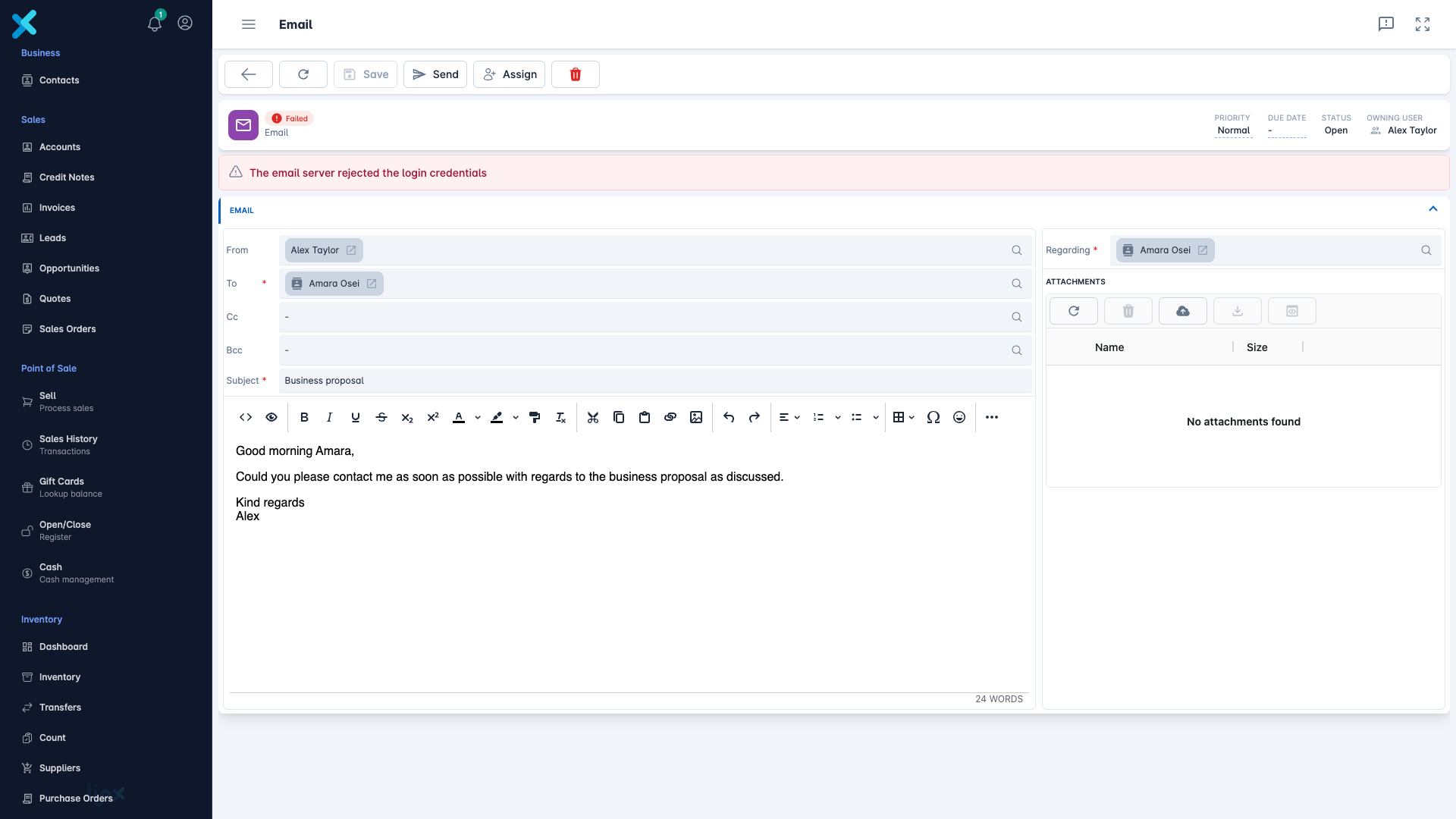
A failed email shows the status Failed and a red banner with the reason:
- No email settings are configured for this business unit. Set up the Mail tab above.
- The sender has no email address configured. Add a sender address in your mail settings.
- The recipient has no email address. Add an Email to the customer.
- One of the email addresses is invalid.
- The email server rejected the login credentials. Check the username and password.
- The email server could not be reached. Check the host, port and protocol.
- One of the attachments could not be sent.
To be told when an email fails, tick Notify record owners when an email fails to send under Settings → Notifications.
Set up text messages
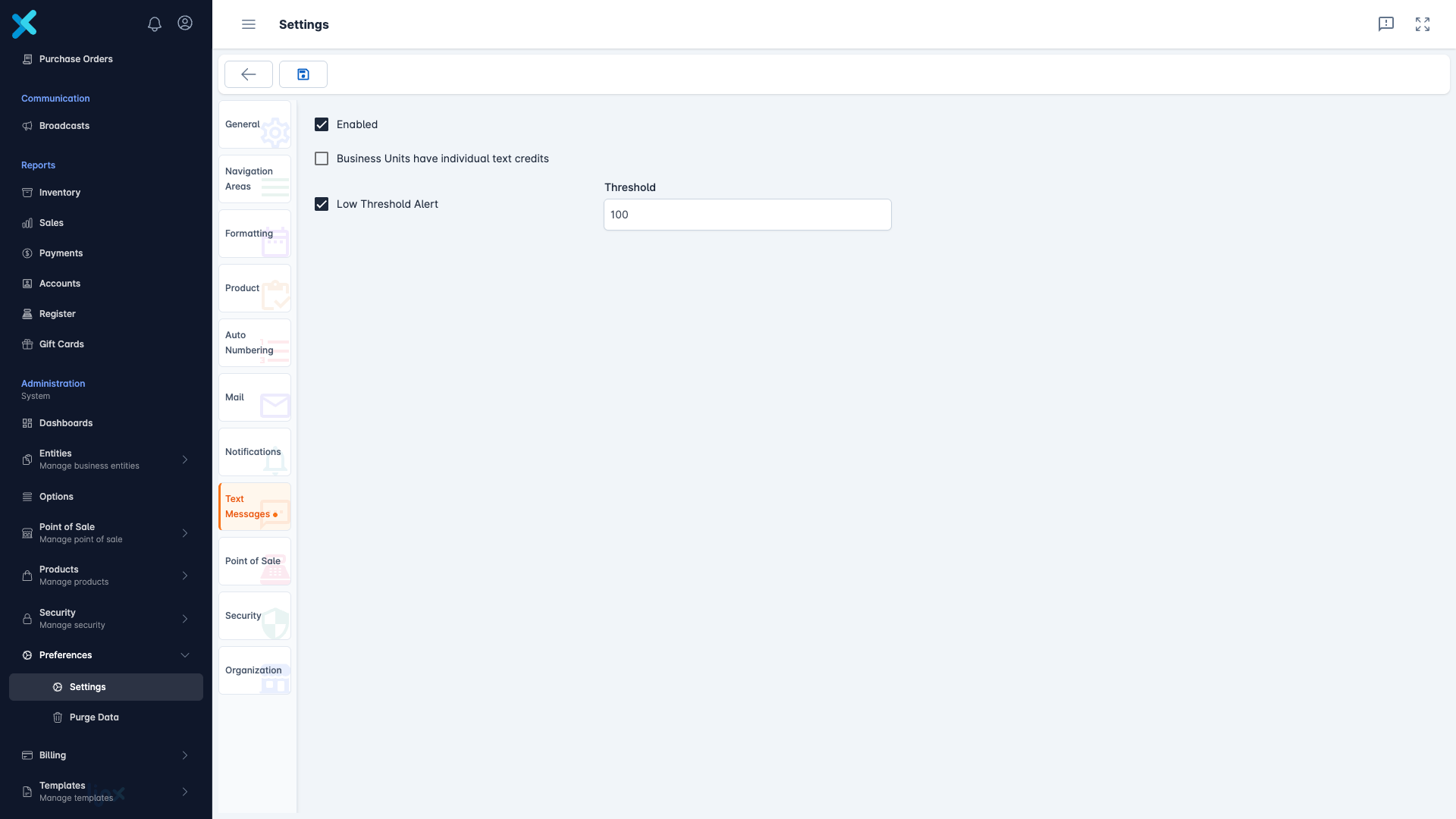
- Go to Administration → Preferences → Settings and open the Text Messages tab.
- Make sure Enabled is ticked. It is on by default.
- Tick Business Units have individual text credits if each branch should have its own balance. Otherwise the credits are shared.
- Set a Low Threshold Alert and the Threshold, so Linx warns you before credits run out.
- Click Save.
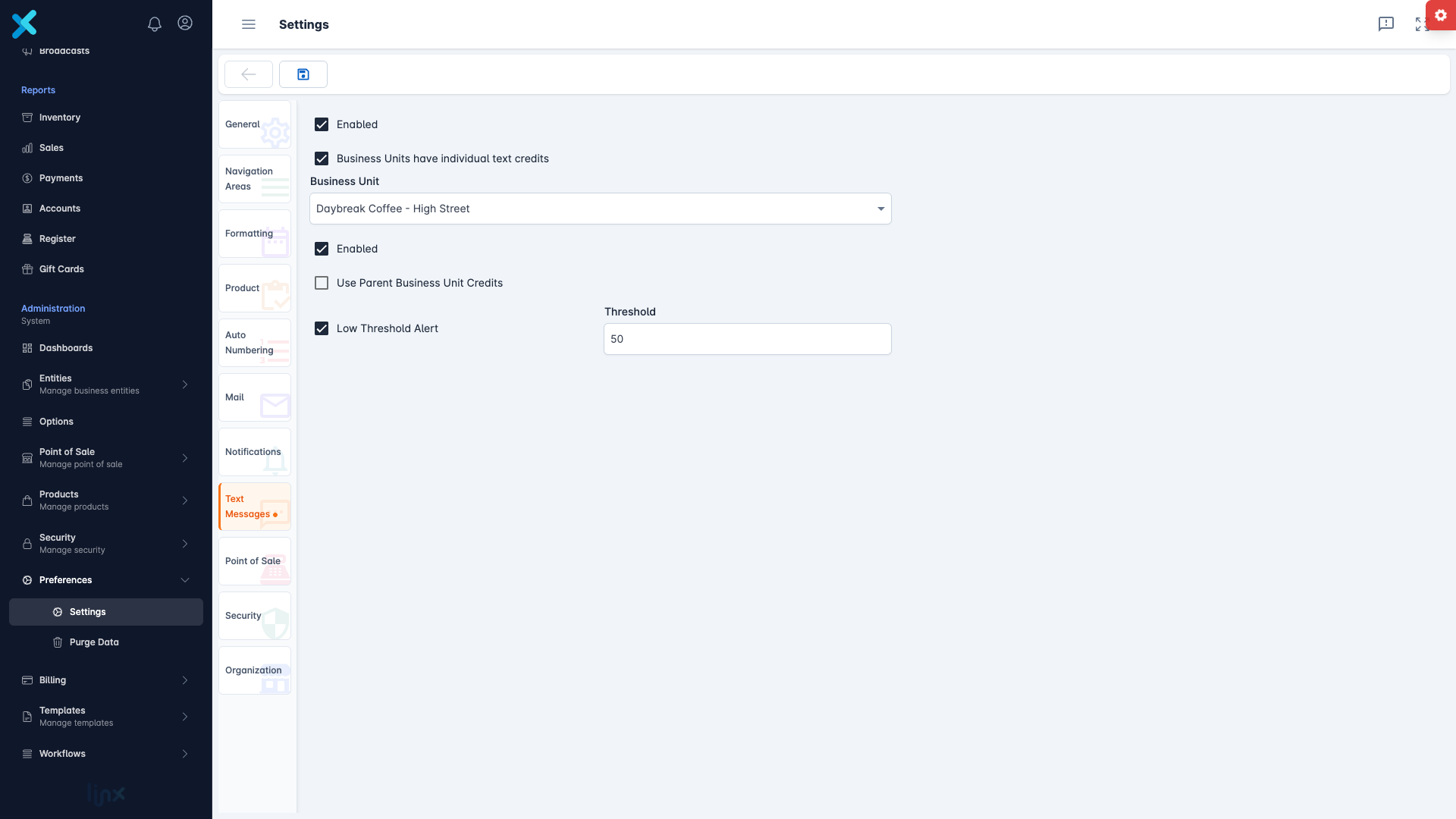
If you use individual credits, choose the Business Unit and check its own Enabled, Low Threshold Alert and Threshold controls. Tick Use Parent Business Unit Credits if that unit should draw from its parent’s balance instead of its own, then click Save.
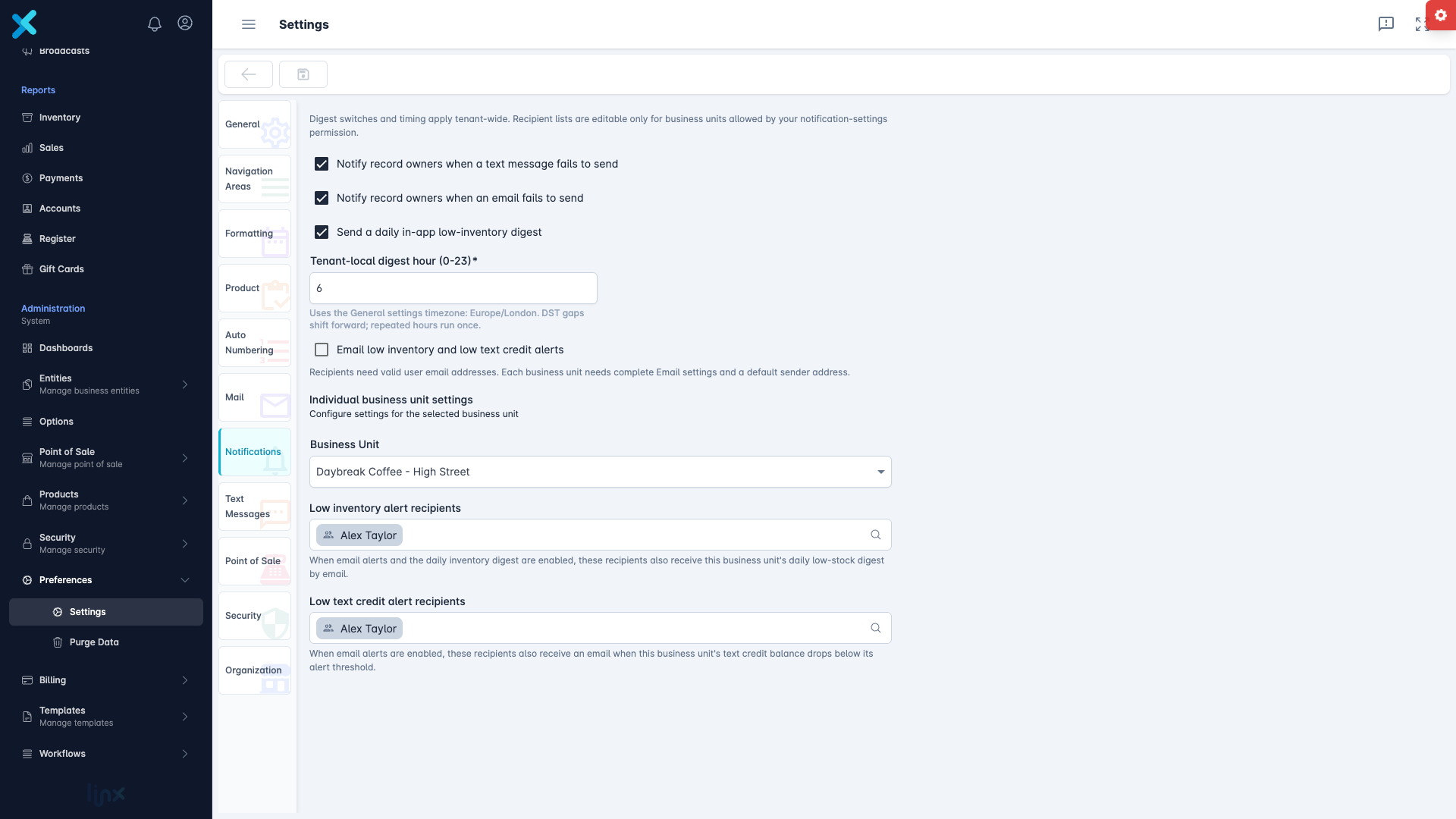
Under Settings → Notifications, choose the Low text credit alert recipients for each business unit. Tick Email low inventory and low text credit alerts if those recipients should also get an email when credits run low.
Buy credits
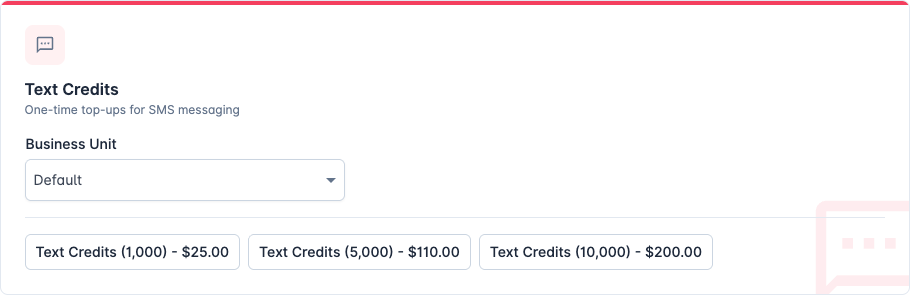
Text credits are prepaid packs. Go to Administration → Billing → Billing and Subscriptions → Text Credits and choose a pack. Credits do not expire. You need an active paid plan to buy them.
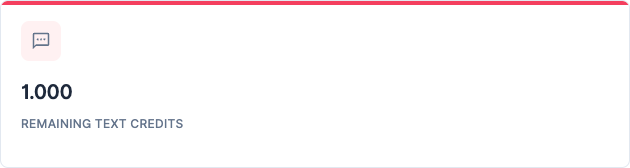
To see what is left, open Billing → Usage and look at Remaining Text Credits.
How texts are sent
A text goes to the Main Phone on the record, not the Mobile Phone, and only the first recipient is used. Linx checks your credit balance before sending.
This describes individual text activities. Record-based broadcasts use Mobile Phone first, then Main Phone if no usable mobile number is available. See Create and monitor a broadcast for bulk messaging, recipient lists and delivery results. Set up mail or text messaging before starting a broadcast or a workflow that sends messages; their delivery failures are reported after processing, rather than through the individual email’s setup check.
A failed text shows the status Failed and a reason, such as Text messaging is disabled, The recipient has no phone number or There aren’t enough text message credits.
Tick Notify record owners when a text message fails to send under Settings → Notifications to be told.