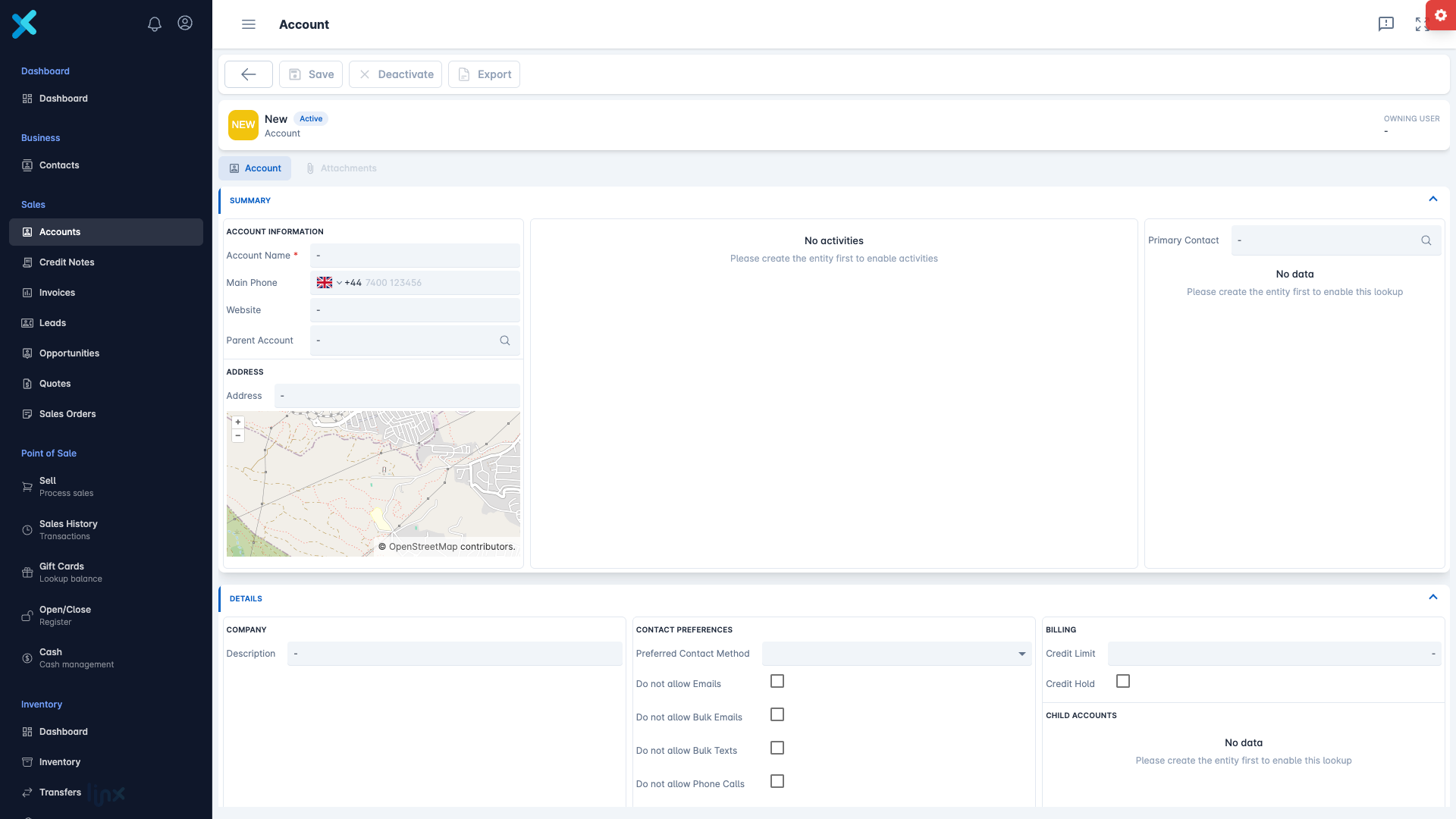
Linx keeps customers as Accounts (the companies or households you deal with) and Contacts (the people you deal with). Each customer entry is a record. For example, Greenfield Supplies can be an account, with Sam Taylor as a contact linked to it.
A customer account is different from your Linx sign-in. If terms such as field, form, query or Regarding are unfamiliar, see Understand the basics: records, lists and timelines.
Create an account
Permission needed:
Tenant Owner has all permissions listed in this guide. Default roles below show delegated access; Tenant Owner is shown when no delegated role is listed.
Accounts: Create
Create an account.
Default roles:
Sales Representative
User
Show moreShow less
- Go to Sales → Accounts.
- Click the + icon (Create new) in the toolbar. It only shows if you have permission.
- Enter the Account Name. It is the only required field. Add the Main Phone, Website, Address and anything else you know.
- Click Save.
After saving, the account opens with these tabs: Account, Attachments, Sales Overview and Linked Entities.
Permission needed:
Contacts: Create
Create a contact.
Default roles:
Sales Representative
User
Show moreShow less
Creation scope controls where and for whom you can create records: User covers your own records; Global covers all units.
- Go to Business → Contacts and click + (Create new).
- Enter the First Name and Last Name. Linx builds the required Full Name from them.
- Add the Email, Business Phone, Mobile Phone and anything else you want, such as Job Title, Preferred Contact Method, Birthday and Anniversary.
- Click Save.
Permissions needed:
Contacts: Read
Open the existing contact to link.
Default roles:
Show moreShow less
Sales Manager
Business Units Downstream
Sales Administrator
Business Unit Only
POS Supervisor
Business Unit Only
Sales Representative
User
Contacts: Update
Set the existing contact’s parent account.
Default roles:
Sales Manager
Business Units Downstream
Show moreShow less
Sales Administrator
Business Unit Only
POS Supervisor
Business Unit Only
Sales Representative
User
Accounts: Read
Open the account being linked.
Default roles:
Show moreShow less
Sales Manager
Business Units Downstream
Sales Administrator
Business Unit Only
Sales Representative
User
All are required to link an existing contact to an account. The complete action is available by default to Tenant Owner (Global); Sales Manager (Business Units Downstream); Sales Administrator (Business Unit Only); Sales Representative (User). User covers your own records; Business Unit Only your unit; Business Units Downstream also its child units; Global all units. Create new also needs the contact-creation permission above.
Open the account and use the contacts table on its form:
- Create new opens a new contact that already has this account as its parent, and copies the account’s address.
- Use existing lets you pick a contact you already have and sets this account as its parent.
You can also choose the account’s Primary Contact in the Primary Contact field, which is separate.
Find a customer later
Permissions needed:
Accounts: Read
Find and open an account.
Default roles:
Show moreShow less
Sales Manager
Business Units Downstream
Sales Administrator
Business Unit Only
Sales Representative
User
Contacts: Read
Find and open a contact.
Default roles:
Show moreShow less
Sales Manager
Business Units Downstream
Sales Administrator
Business Unit Only
POS Supervisor
Business Unit Only
Sales Representative
User
You need Read for the type and customer you open, not both types. User covers your own records; Business Unit Only covers your unit; Business Units Downstream also covers its child units; Global covers all units.
On the Accounts or Contacts list:
- Use the Select a Query menu to switch saved lists: Active Accounts, Inactive Accounts, My Active Accounts or All Accounts (contacts have the same set). A query defines the list’s columns, filters and sort order; choosing one does not change your customer records.
- Type in the Search box and press Enter. It searches names, numbers, email addresses, phone numbers and addresses.
- Click Export to download the list as Excel or CSV.
Change a customer
Permissions needed:
Accounts: Read
Open the account to change.
Default roles:
Show moreShow less
Sales Manager
Business Units Downstream
Sales Administrator
Business Unit Only
Sales Representative
User
Accounts: Update
Edit or deactivate the account.
Default roles:
Sales Manager
Business Units Downstream
Show moreShow less
Sales Administrator
Business Unit Only
Sales Representative
User
Contacts: Read
Open the contact to change.
Default roles:
Show moreShow less
Sales Manager
Business Units Downstream
Sales Administrator
Business Unit Only
POS Supervisor
Business Unit Only
Sales Representative
User
Contacts: Update
Edit or deactivate the contact.
Default roles:
Sales Manager
Business Units Downstream
Show moreShow less
Sales Administrator
Business Unit Only
POS Supervisor
Business Unit Only
Sales Representative
User
Accounts: Assign
Give the account to someone else.
Default roles:
Sales Manager
Business Units Downstream
Contacts: Assign
Give the contact to someone else.
Default roles:
Sales Manager
Business Units Downstream
Editing or deactivating requires both Read and Update for the record type. Assigning additionally requires Assign for that type; the complete assignment action is available by default to Tenant Owner (Global) and Sales Manager (Business Units Downstream). User covers your own records; Business Unit Only your unit; Business Units Downstream also its child units; Global all units.
- Edit: change the fields and click Save. Fields in the header can be edited in place.
- Deactivate: click Deactivate in the record toolbar to stop using a customer without losing their history. Activate brings them back. An inactive record can still be edited.
- Assign: click Assign to give the record to someone else (needs permission to update and assign).
- Delete: tick the record in the list, or open it, and click Delete. Confirm Delete record(s). This cannot be undone. If other records, such as invoices, point to the customer, Linx lists them in Unable to delete and keeps the record. Sales Representatives cannot delete.