
Linx fills a Word template with the details of a quote and turns it into a PDF. You can then download it or email it from the quote.
New workspaces include an active Quote – Standard template, even if you chose not to load sample data. You can use it straight away: create the PDF. There is no need to download a file from the website and upload it first.
Note: Existing workspaces are not given the new templates automatically. If yours has no active quote template, ask someone with Manage Entity Templates to create and upload one using the steps below.
Use or customise the standard template
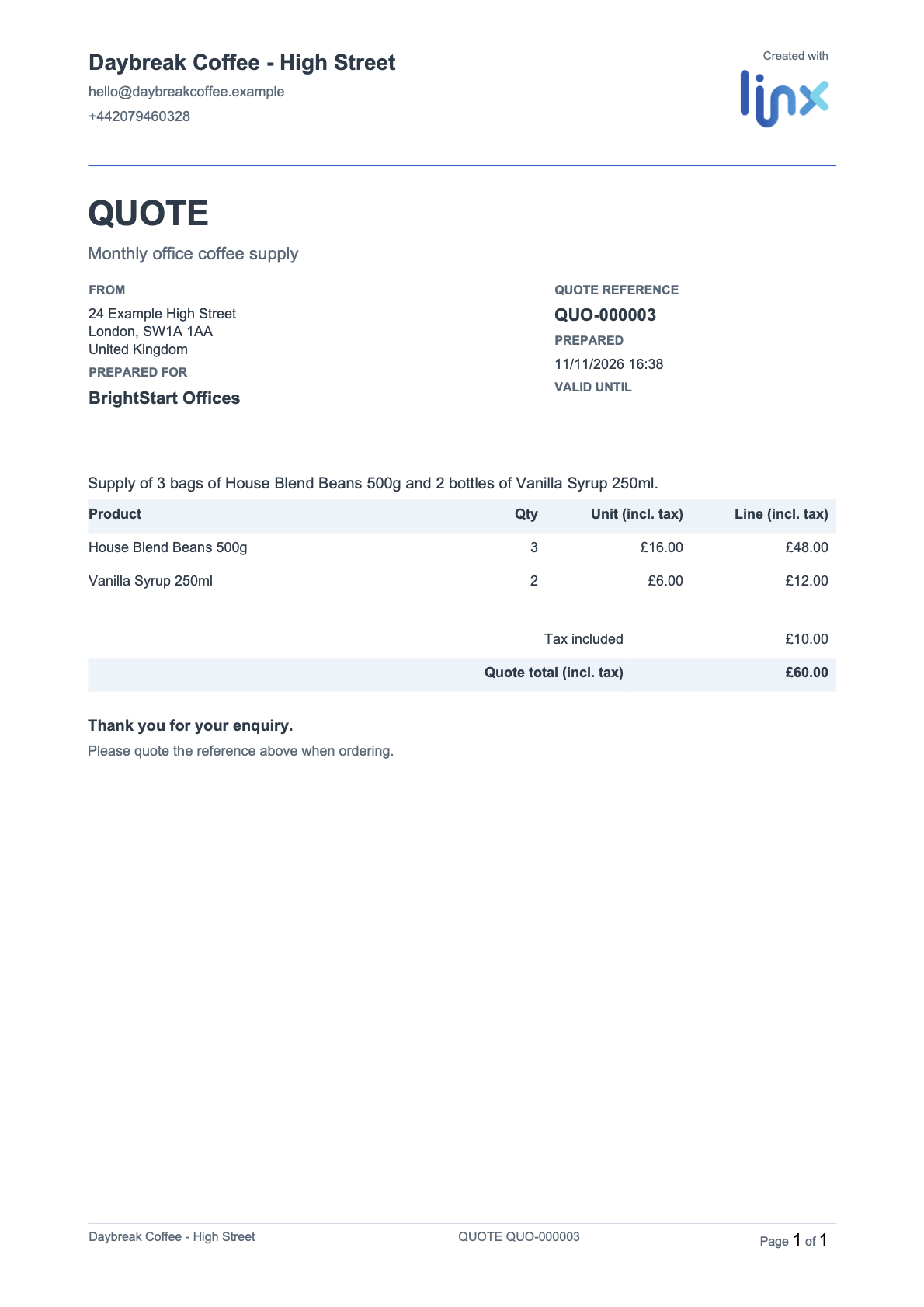
Quote – Standard uses the quote’s owning business unit for your business name, contact details and address. It includes the customer, billing address, quote reference, product lines and totals. Valid until comes from Effective To; missing values print blank.
The starter has a shared A4 layout, repeating header and footer, page numbers and a small Created with Linx logo. It does not fix a currency or tax rate. Its unit and line prices include tax. Tax included is already part of the final total, not an extra charge. Review the business details and any wording required in your country before sending it to a customer.
To add your own logo or change the layout, download and customise the template in the app. You can replace its Word file, keep it and add another template, or delete an unused one. Changes are not overwritten and deleted templates are not reinstalled when Linx restarts.
Upload another quote template
- Start with a Word file downloaded from an existing workspace template, or create your own design in Word. Where a detail should be filled in, type a merge token in double curly brackets, for example
{{quotenumber}}for the quote number or{{regarding}}for the customer’s name. Save it as a.docxfile. - Go to Administration → Templates → Entity and click Create new.
- Enter a Name (up to 255 characters).
- For Entity, choose Quote.
- Choose the Business Unit the template is for.
- Tick Active, add a Description if you like, and upload the file under Template. Only
.docxfiles are accepted. - Click Save.
Product lines use a repeating table: {{START:products}} in one row, {{[products.name]}}, {{[products.quantity]}}, {{[products.unit_price_including]}} and {{[products.total_including]}} in the next, and {{END:products}} in a third. The full list of tokens, and the rules for them, are in Write a Word document template. [VERIFY IN APP] Export a quote with the installed standard template, then check any customised or uploaded version.
Create the PDF
- Open the saved quote.
- In the toolbar, click Export. It only shows if at least one active template exists for quotes.
- In Select a template, choose Quote – Standard, or another available quote template.
- Click Download to save the PDF. To use Email instead, follow the email instructions below.
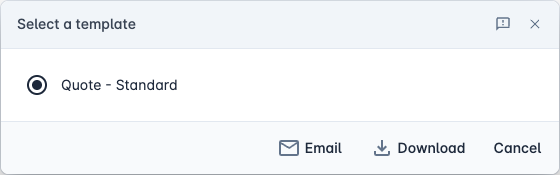
Download gives you a PDF named after the template.
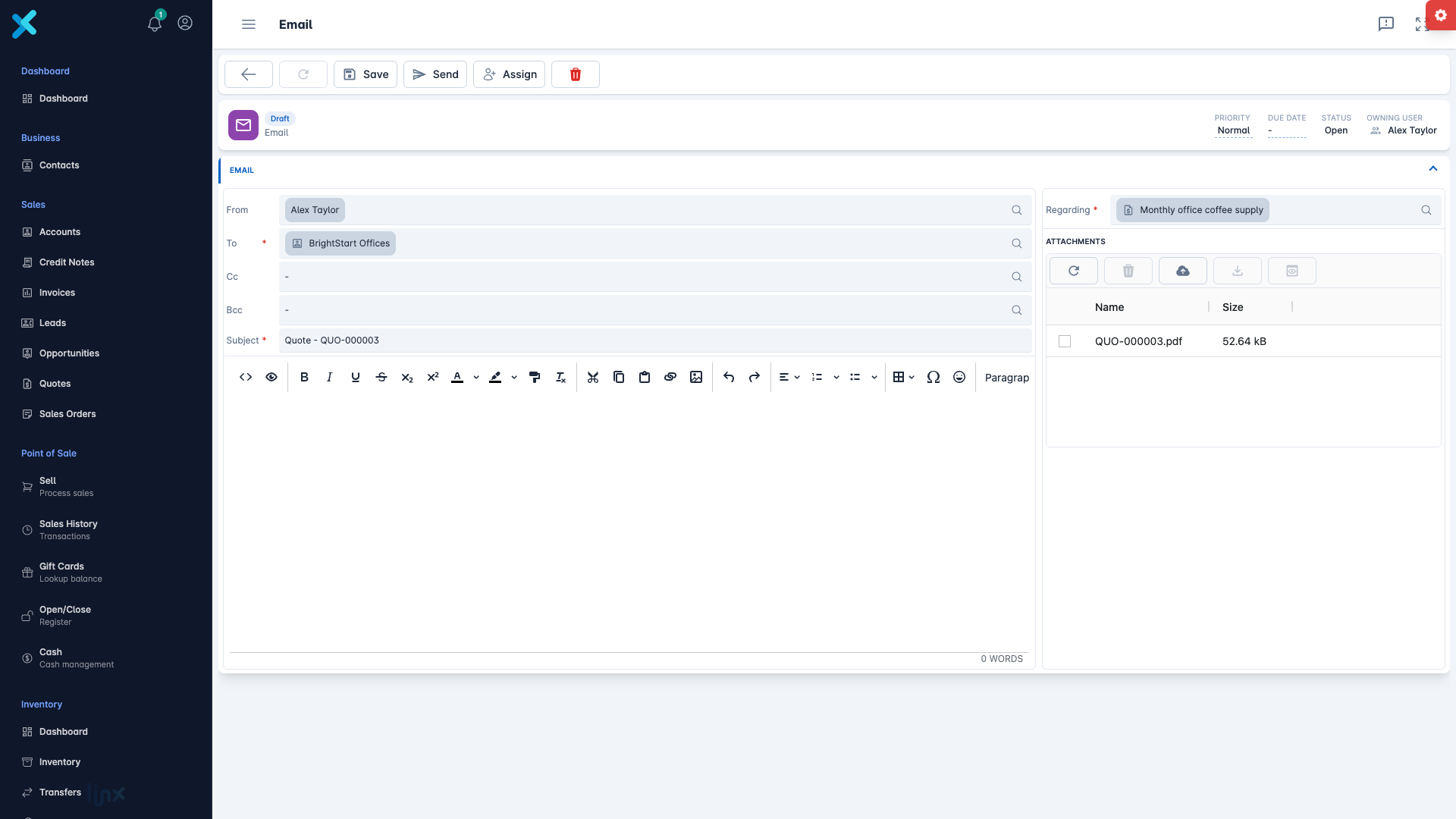
Click Email to create a draft email for you to check:
- The Subject is
Quote -followed by the quote number. - To is the quote’s contact, otherwise its account, otherwise the customer in Regarding, as long as that record can be emailed.
- The PDF is attached, and the email is linked to the quote.
Linx opens the draft. Read it, change anything you want, and click Send.
Note: Email must be set up first. See Set up email and text messages.