A quote lists the products you are offering a customer, with prices, discounts and tax. When the customer says yes, you turn it into a sales order.
Note: Quote amounts use your business’s currency and formatting settings. Pounds in the UK demo examples are not a requirement, and the currency does not change just because you select a customer in another country. Linx subscription charges are billed separately in USD. See General settings → Formatting.
Create the quote
Permissions needed:
Tenant Owner has all permissions listed in this guide. Default roles below show delegated access; Tenant Owner is shown when no delegated role is listed.
Quotes: Create
Create a quote.
Default roles:
Sales Representative
User
Show moreShow less
Accounts: Read
Select an account customer.
Default roles:
Show moreShow less
Sales Manager
Business Units Downstream
Sales Administrator
Business Unit Only
Sales Representative
User
Contacts: Read
Select a contact customer.
Default roles:
Show moreShow less
Sales Manager
Business Units Downstream
Sales Administrator
Business Unit Only
POS Supervisor
Business Unit Only
Sales Representative
User
Quotes: Read
View the saved quote.
Default roles:
Show moreShow less
Sales Manager
Business Units Downstream
Sales Administrator
Business Unit Only
Sales Representative
User
Creating requires Quotes: Create plus Read for the selected customer’s type, not both customer types. The complete creation action is available by default to Tenant Owner (Global); Sales Representative (User); Sales Manager (User for creation, Business Units Downstream for customer reading). Linked opportunities or other records must also be readable.
User means your own records, Business Unit Only your unit, Business Units Downstream your unit and its child units, and Global all units. Custom roles can grant the same access.
- Go to Sales → Quotes and click New.
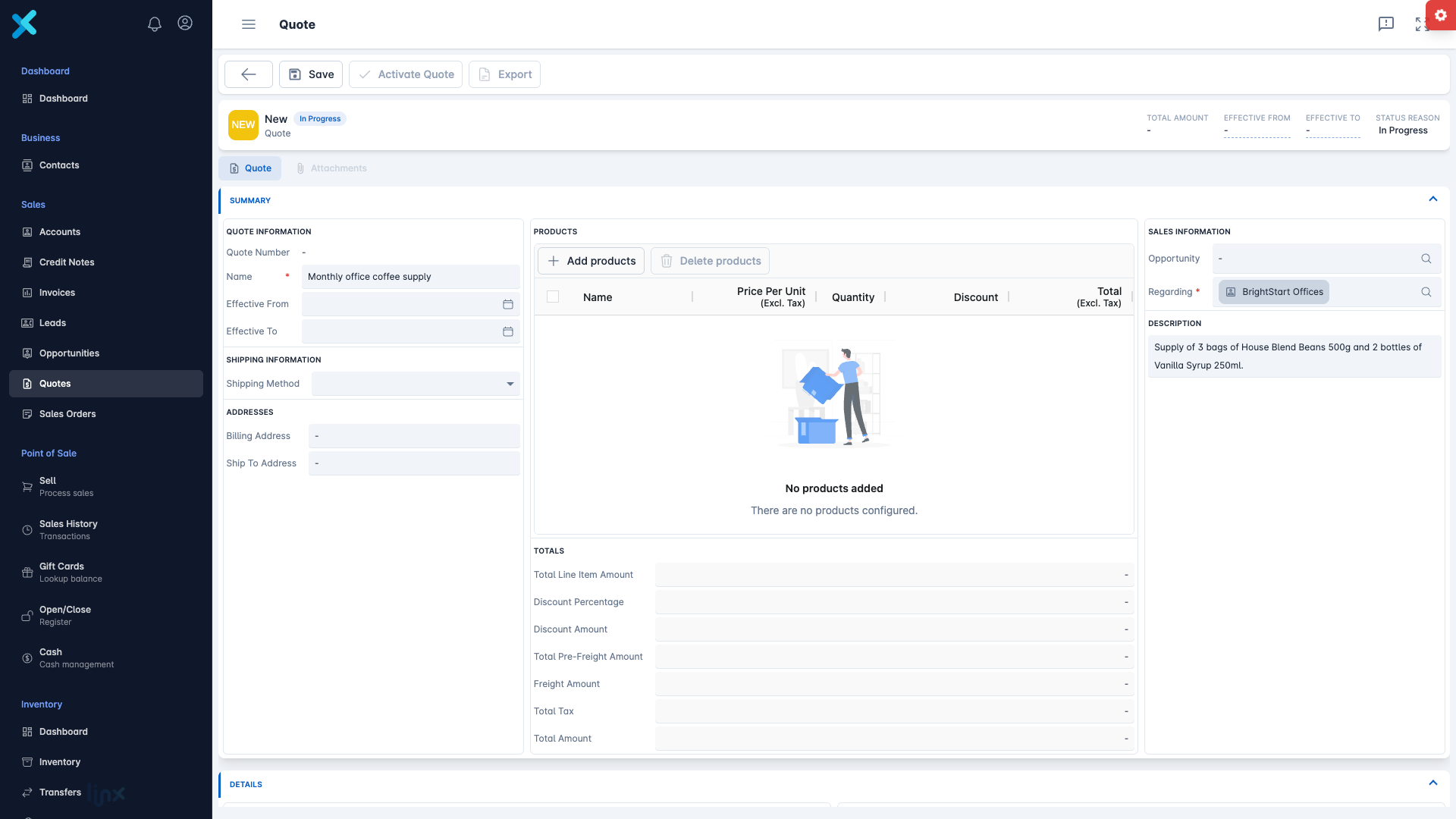
- In Quote Quick Create, enter the Name and choose Regarding. Both are required. Regarding must be an account or a contact.
- If the quote comes from an opportunity, choose the Opportunity. Add a Description if you like.
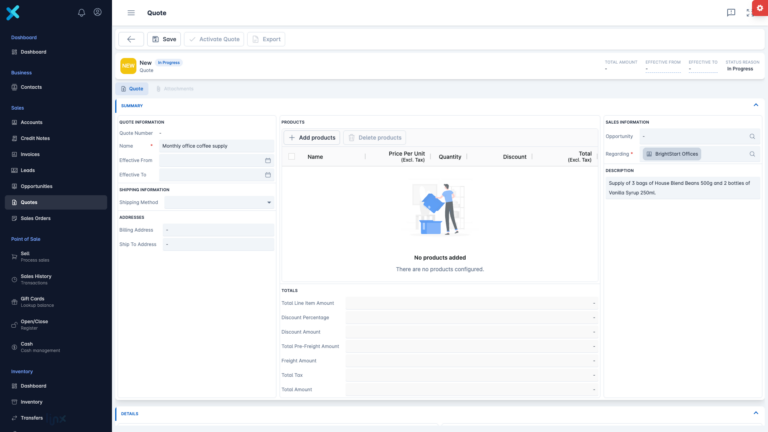
- Click Save. The full quote opens.
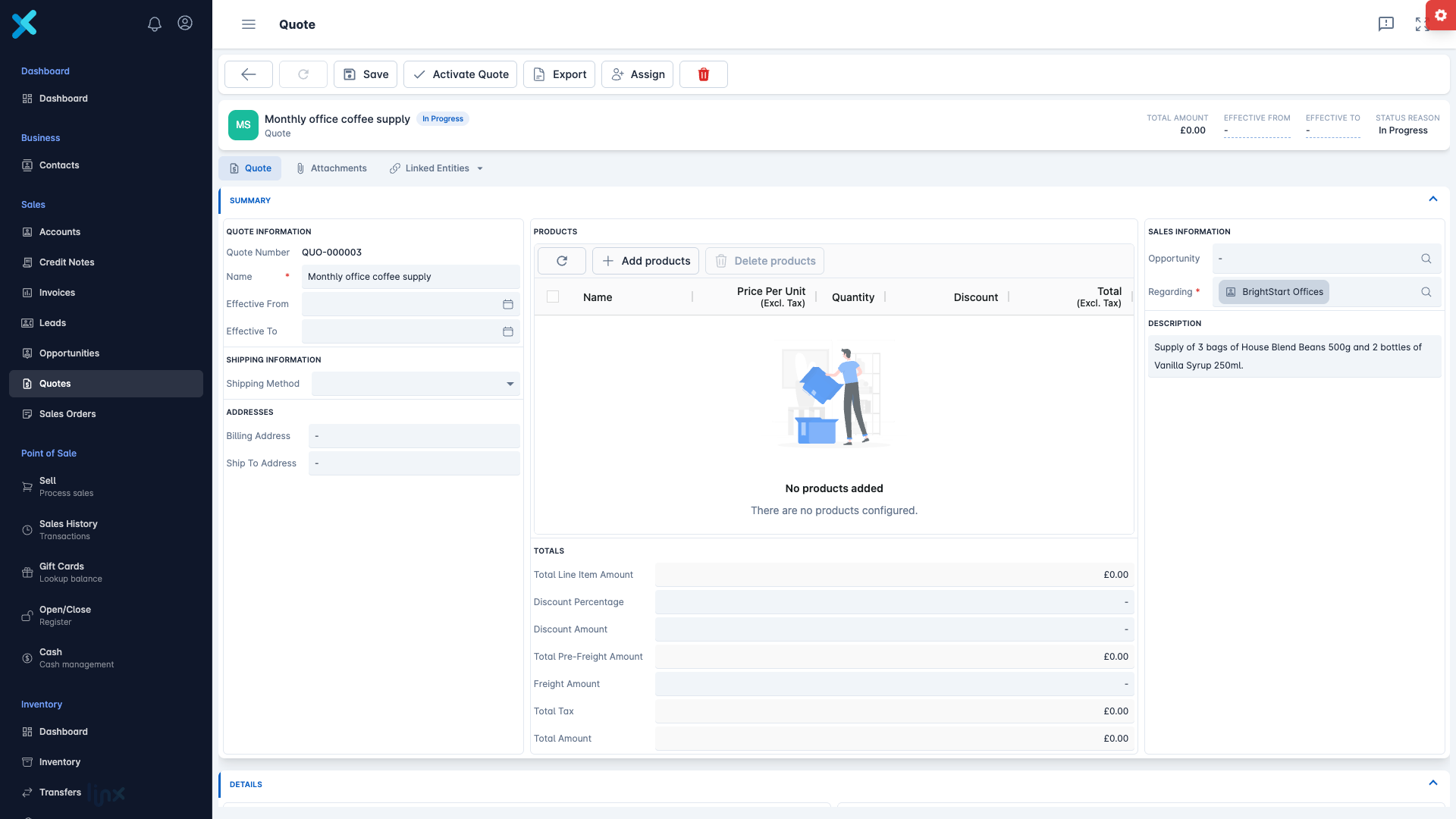
The quote gets a Quote Number automatically. The top of the form shows the Total Amount, Effective From, Effective To and the Status Reason.
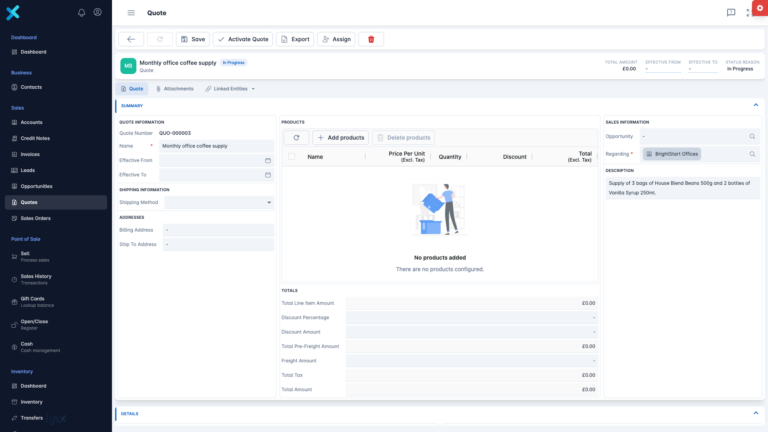
Add products
Permissions needed:
Quotes: Read
Open the quote to change its lines.
Default roles:
Show moreShow less
Sales Manager
Business Units Downstream
Sales Administrator
Business Unit Only
Sales Representative
User
Quotes: Update
Add or change quote lines.
Default roles:
Sales Manager
Business Units Downstream
Show moreShow less
Sales Representative
User
View Products
Choose products from the catalogue.
Default roles:
Inventory Manager
Show moreShow less
Sales Representative
Sales Manager
Sales Administrator
Reporting Analyst
View Product Pricing
See products’ retail prices.
Default roles:
Inventory Manager
Show moreShow less
Sales Representative
Sales Manager
Sales Administrator
Reporting Analyst
All applicable permissions are required. Changing lines requires both Quotes: Read and Update; the complete action is available by default to Tenant Owner (Global); Sales Manager (Business Units Downstream); Sales Representative (User).
Note: Save the quote first. The products section is not available on a brand new, unsaved quote.
- In the Products section, click Add products.
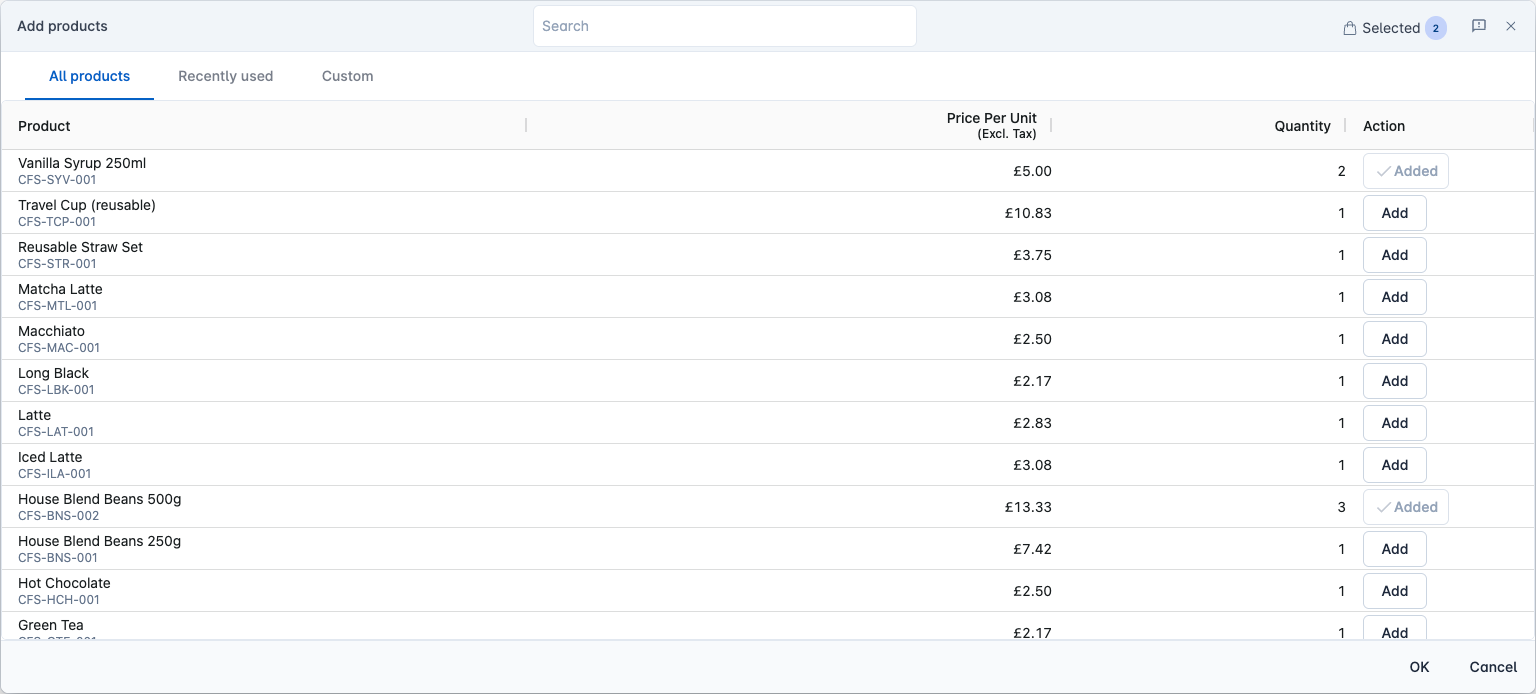
- In the window, use the tabs All products, Recently used and Custom. Type a Quantity (at least 1) for each product, click Add, then OK.
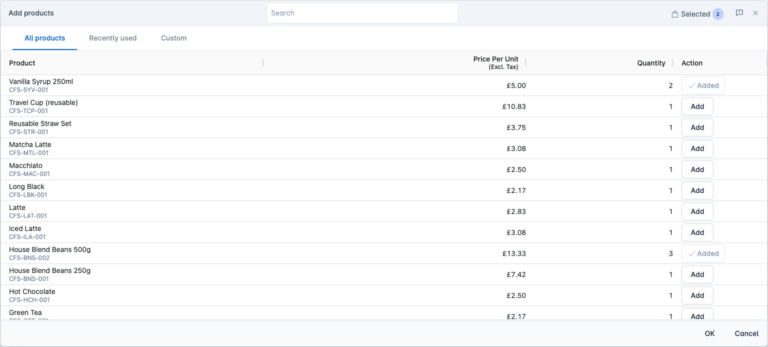
- For something that is not in your product list, open Custom, click Add custom product, and enter a name, a price and a quantity.
- Click Save.
A product from your list can only be added once. A custom product can be added more than once. To remove lines, select them and click Delete products.
Change prices and discounts
Permissions needed:
Quotes: Read
Open the quote to change prices and discounts.
Default roles:
Show moreShow less
Sales Manager
Business Units Downstream
Sales Administrator
Business Unit Only
Sales Representative
User
Quotes: Update
Save changed quote prices and discounts.
Default roles:
Sales Manager
Business Units Downstream
Show moreShow less
Sales Representative
User
Both are required; the complete action is available by default to Tenant Owner (Global); Sales Manager (Business Units Downstream); Sales Representative (User). Changing a quote’s line price does not require Manage Product Pricing: that permission changes the product catalogue instead.
The products table has the columns Name, Price Per Unit (Excl. Tax), Quantity, Discount and Total (Excl. Tax).
- Click Price Per Unit to type a different price for this quote. The list price is not changed.
- In Discount, enter an amount or a percentage for that line.
Changes take effect when you click Save.
The Totals section shows Total Line Item Amount, Discount Percentage, Discount Amount, Total Pre-Freight Amount, Freight Amount, Total Tax and Total Amount. Use Discount Percentage or Discount Amount to discount the whole quote, but not both at once. Linx shares the discount across the lines and works out the tax line by line.
Note: Prices on quotes are shown without tax, and the tax is added in the totals.
Move the quote along
Permissions needed:
Quotes: Read
Open the quote to change its status.
Default roles:
Show moreShow less
Sales Manager
Business Units Downstream
Sales Administrator
Business Unit Only
Sales Representative
User
Quotes: Update
Activate or close the quote.
Default roles:
Sales Manager
Business Units Downstream
Show moreShow less
Sales Representative
User
Both are required; the complete action is available by default to Tenant Owner (Global); Sales Manager (Business Units Downstream); Sales Representative (User). User means your own records, Business Units Downstream your unit and its child units, and Global all units.
A quote has a status, and the buttons in the toolbar change as it moves.
| Status |
Button |
What happens |
| Draft (In Progress) |
Activate Quote |
The quote becomes Active (Open). Use this when it is ready to send |
| Active (Open) |
Revise |
The quote goes back to Draft so you can change it |
| Active (Open) |
Create Order |
The customer accepted. See Turn a quote into an order and an invoice |
| Active (Open) |
Close Quote |
You choose a reason: Lost, Canceled or Revised. The quote is closed |
A closed quote cannot be edited. A Draft quote cannot go straight to won. Activate it first.
Next steps
Send the quote to the customer as a PDF. See Send a quote as a PDF.