
Understand the basics of Linx before you add customers or follow the task guides. This article explains the names you see on screen, using a fictional customer, Dusk & Dawn Boutique Hotel, and a person who works there, Marcus Webb.
The main help examples use a UK business, but your workspace can show a different currency and date format. These settings are shared by the business, not selected separately by each user. See Currency, regional settings and examples.
Records and record types
A record is one item you keep information about: one customer, one person, one quote or one task.
A record type is the kind of item. Account, Contact and Quote are record types; Dusk & Dawn Boutique Hotel is one account record.
Some screens use the word Entity for a record type, especially under Administration. A label such as Linked Entities refers to links between records. You do not need to create your own record types to use the ones supplied with Linx.
| Term | Example |
|---|---|
| Record type | Account: the kind of customer information you are keeping. |
| Record | Dusk & Dawn Boutique Hotel: one particular account. |
| Another record type | Contact: information about a person. |
| Another record | Marcus Webb: one particular contact. |
Accounts and contacts
An account represents a company or household you deal with. A contact represents a person. Linking them tells you which people belong to which customer.
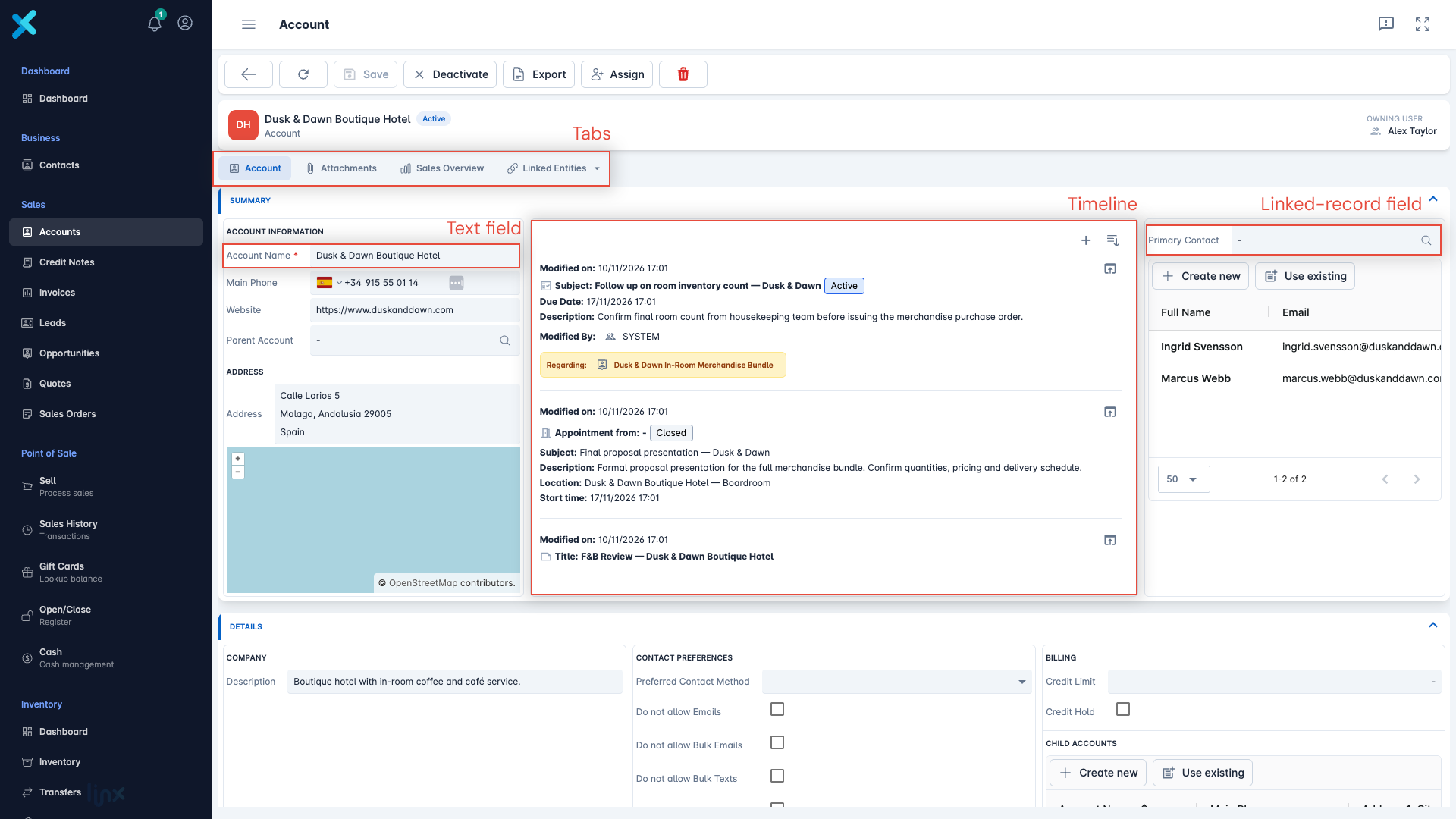
For example, Dusk & Dawn Boutique Hotel is the account, and Marcus Webb is a contact linked to that account. The same account can have several contacts.
An account’s Primary Contact identifies its main contact person. Choosing a primary contact is separate from linking contacts to the account.
Note: A customer account is not the account you use to sign in to Linx. Your sign-in identifies you as a user; a customer account holds information about a customer.
For the steps, see Add a customer.
Fields, values and forms
A field holds one piece of information about a record. Its value is the information entered or selected there.
| Field | Example value |
|---|---|
| Account Name | Dusk & Dawn Boutique Hotel |
| Website | A customer’s website address |
| Primary Contact | Marcus Webb, selected from the contact records |
Fields can hold different kinds of information, such as text, numbers, dates or a choice from a list. A field that selects another record creates a link rather than just storing a typed name. The selector used to find and choose that record is called a lookup.
A form is the screen where you view, enter or edit a record’s information. It arranges fields into panels and sections. A quick create form opens in a side panel when you add something such as a task.
Required fields must have a value before you can save. Read-only fields show information you cannot edit there. Your business can customise forms, so the fields and layout you see may differ from a screenshot.
Lists, rows and columns
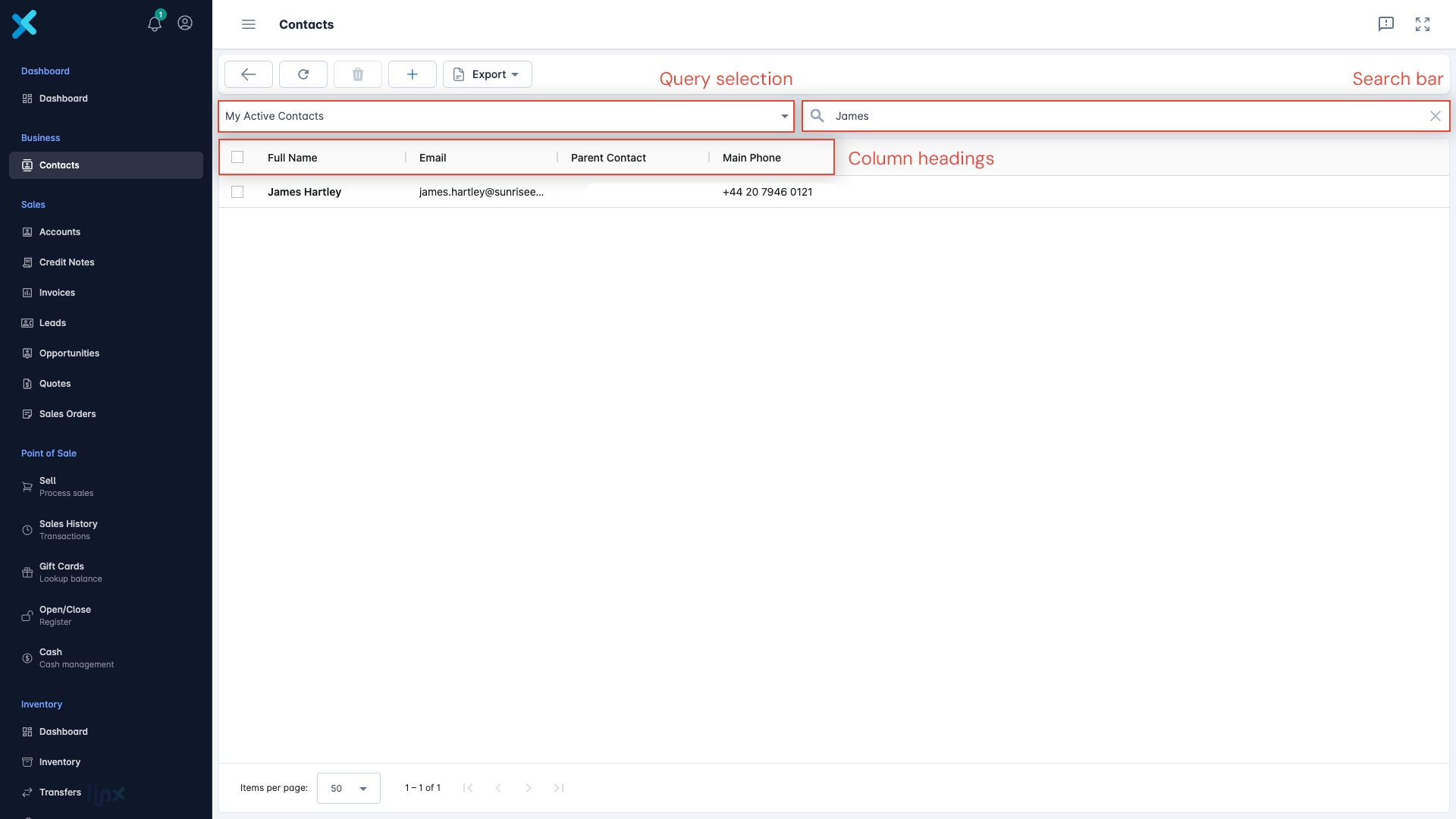
A list shows several records together, usually as a table. For example, Sales → Accounts shows account records.
Each row represents one record. Each column shows a piece of information about those records, such as their names or phone numbers. A column heading tells you what the values underneath mean.
The same information can appear in both places: a phone number can be a field on an account’s form and a column in the accounts list. A list can also show information from linked records.
Queries, filters and sorting
A query is a saved list definition. It describes which records to include, which columns to show and how to sort them. You do not need to write code to use one.
On a record list, Select a Query lets you choose a saved list, such as Active Accounts or My Active Accounts.
| Term | What it means |
|---|---|
| Filter | A rule deciding which records belong in the list, such as only active accounts. |
| Sort order | The order the records appear in, such as account name from A to Z. |
| Search | A way to narrow the selected list further by entering a search term. |
Choosing a different query does not create, change or delete the records. The same account can appear in several saved lists. Your permissions still determine which records you can see; selecting All Accounts does not give you access to every account in the business.
Administrators can also configure queries for record selectors and lists of related records inside a form. For setup instructions, see Create a saved list.
Linked records and Regarding
Records are linked when one refers to another. Dusk & Dawn Boutique Hotel’s contact can link to Marcus Webb, and a quote can link to its customer. Links let you select an existing record instead of entering its details again.
The Regarding field answers "What is this about?" It links a record, note or activity to the record it concerns. Depending on the field’s configuration, that record might be an account, contact, quote or another supported record type.
For example, a task to call Dusk & Dawn Boutique Hotel can have that account in Regarding. An email about a particular quote can be linked to the quote instead.
Regarding is not the same as the recipient or the subject of a message.
| Email detail | Question it answers | Example |
|---|---|---|
| To | Who receives this email? | Marcus Webb |
| Subject | What title does the recipient see? | Your updated quote |
| Regarding | Which Linx record does this email concern? | The quote you are discussing |
When you add a note or activity from a customer’s timeline, Linx fills in Regarding with that customer. Check it when creating work elsewhere so it is linked to the record you intend.
Some configurations also use Regarding List for links to more than one record. This general-purpose field type is also used for email recipients and appointment attendees; it is not a saved mailing list.
Activities, notes and timelines
An activity records something to do or a communication, such as a task, phone call, appointment, email or text message. A note keeps written information, such as a summary of a customer’s requirements.
A timeline brings together the notes, activities and selected business events linked to a record, so you can follow the conversation, see follow-up tasks and understand important outcomes.
For example, Dusk & Dawn Boutique Hotel’s timeline might contain a note about what the customer needs, a logged call and an open task to follow up. A colleague with the right access can read those entries before contacting the customer.
One activity can appear on several timelines. For example, an email regarding a quote and addressed to Marcus Webb’s contact record appears on both the quote and Marcus’s timelines, provided those record types have activities enabled. Selecting an internal user as a recipient or attendee does not add it to that user’s timeline; user records do not have activities enabled.
These are views of the same activity, not separate copies. Sending an email or completing a task updates that entry wherever it appears. Saving changes to Regarding, recipients or attendees updates the timeline links too. Removing one link does not remove another: an activity stays on a contact’s timeline after they are removed from To if they remain in Cc or Regarding.
An account or contact timeline also includes activities regarding its opportunities, quotes and invoices, using their current customer links. For opportunities these are Customer, Parent Account and Parent Contact; quotes and invoices use their own Regarding field. This works upwards: a general account email does not automatically appear on every opportunity for that account. Changing a customer link changes the included history when you next load the timeline; no extra activity copies are created.
Lead qualified, Opportunity won and Opportunity lost appear as read-only System event entries with the time, actor and source record. They are linked to the source and its Customer, Parent Account and Parent Contact at the time of the outcome, where activities are enabled. Qualification includes customer records created during that action. Unlike ordinary activity rollup, these historical event links do not move when you later change the customer.
The timeline is not a complete audit trail of every field change. Creating a lead or opportunity does not automatically add a creation-event entry, and notes appear only on the record they directly concern. Not every linked record shares its history. Your permissions still apply, including Read access to the source lead or opportunity for an event, and to the opportunity, quote or invoice for activities included through customer rollup.
For the steps, see Log a note, task, call, email or text on a customer.
Using Linx versus customising it
In everyday work, you create records, fill in fields, choose saved lists and add timeline entries. Customisation changes the structure people use: adding a field, arranging a form, defining a saved list or creating a record type.
For example, entering a customer’s phone number changes one record. Adding a new field for a delivery instruction changes what information that record type can hold.
You do not need to customise Linx before using it. Follow the task guides for everyday work, and use the customisation guides when your business needs a different setup.